
So many things to think about, so little time? Here’s the answer in 4 simple steps!
Here’s a short guide which will show you how to remove stores and territories to format a cover release correctly using RouteNote:
- Go to the ‘Manage Stores‘ section of the release page.
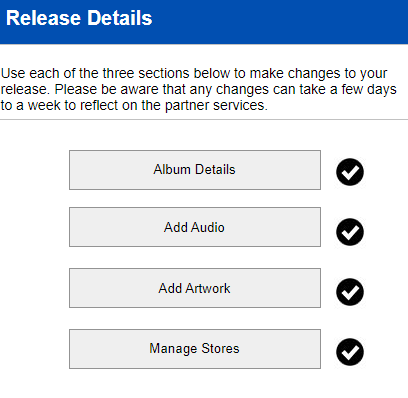
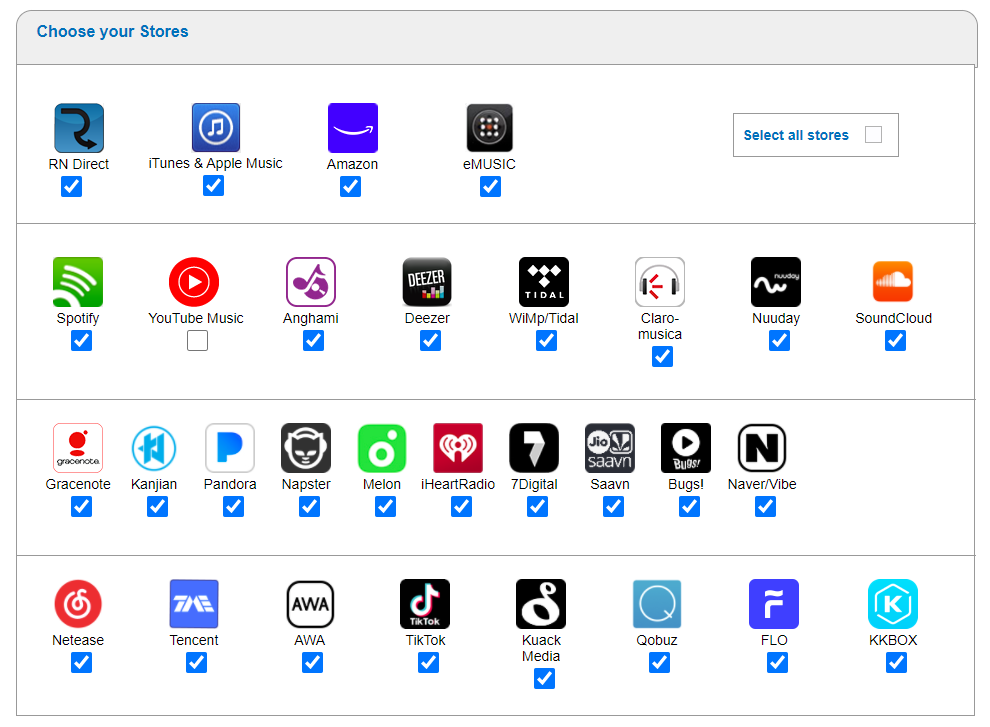
2. Pick the stores you want as normal. Don’t worry about covers restrictions for the moment!
3. Select Exclude these Territories, then in the Territories field, enter the five countries that require licences to distribute covers: Canada, United States (the), Mexico, India, and Pakistan. The territories section should now look like this:
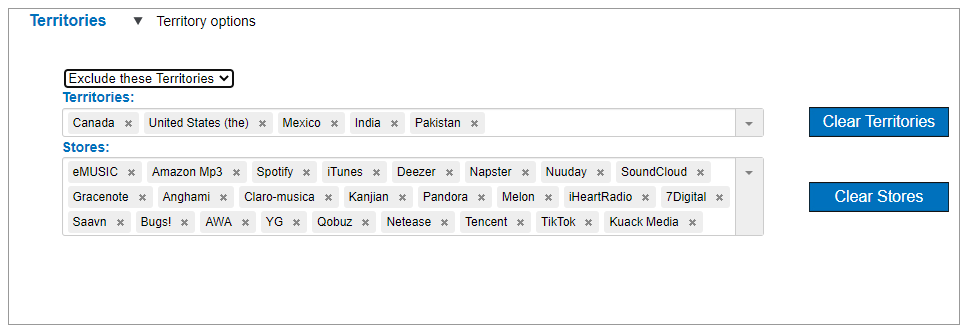
At the moment, this is excluding those five countries from all the stores listed in the ‘Stores‘ section.
4. Now, we’re going to remove the stores that don’t need a mechanical licence: Spotify, Deezer, Pandora, iHeartRadio, Saavn, Nuuday, Anghami, Tidal, and KKBox. We don’t need to exclude those five countries from them. We’ll do this by clicking on the cross next to their names.
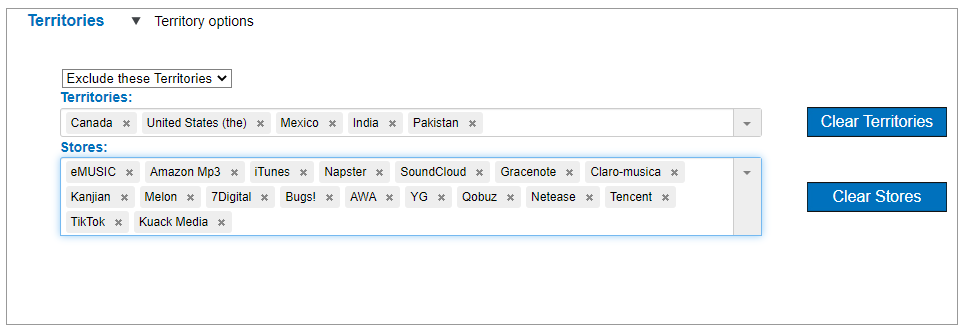
Nice, you’re done! This only excludes those five countries from stores where they would need a mechanical licence. It’ll be distributed as normal to the other eight selected stores in this example.
Have a watch of the video below for more info on cover songs!
Check out the full RouteNote Style Guide here!
More on cover releases:
Can I upload cover songs with RouteNote?
What should I put in the P line if my release is a cover?
Can I cover a song and use audio from the original track?
What is a cover song?
How do I license a cover?
How do I credit the original artist if my release is a cover?
Which stores and territories can I send a cover track to?
What should I put in the C line if my release is a cover?
Can I choose ‘soundtrack’ as my genre if the release is a cover?