
Choose your style, get it on file, set up your Spotify artist profile 💅
Once your music has been distributed to Spotify by RouteNote for the first time, you’ll probably want to claim your new artist profile. By claiming your artist profile, you will be able to personalise it and make it more engaging for your fans!
To claim your Spotify artist profile through RouteNote, either head to this link or go to the Artist Services tab of your RouteNote account and select Spotify for Artists.
You can only claim one Spotify artist page per RouteNote account. If you need to claim another artist’s Spotify page, head to this article for info on how to do this.
In order to start claiming, you’ll need at least one approved release under the artist name associated with your RouteNote account.
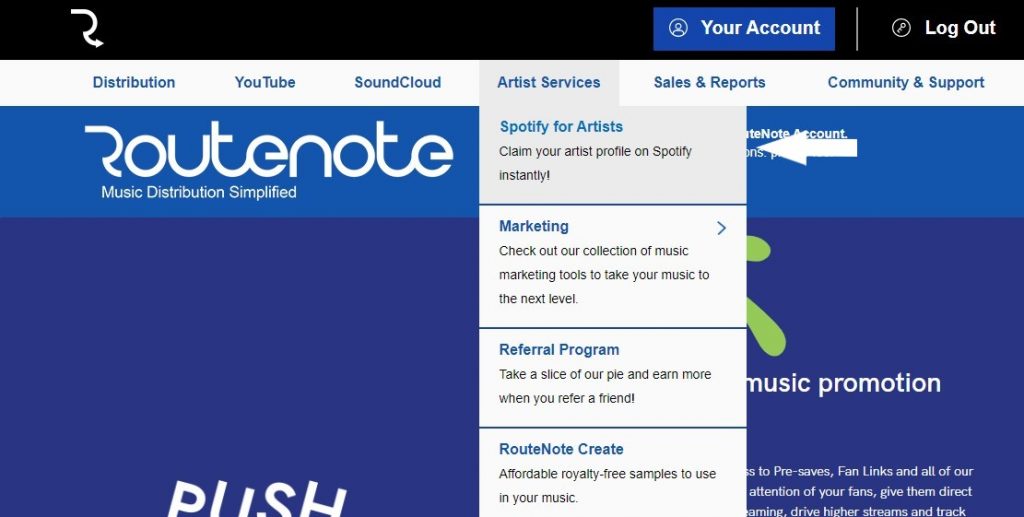
Then, type in your artist name and select. The Get Access button will appear as soon as you’ve selected your artist name.
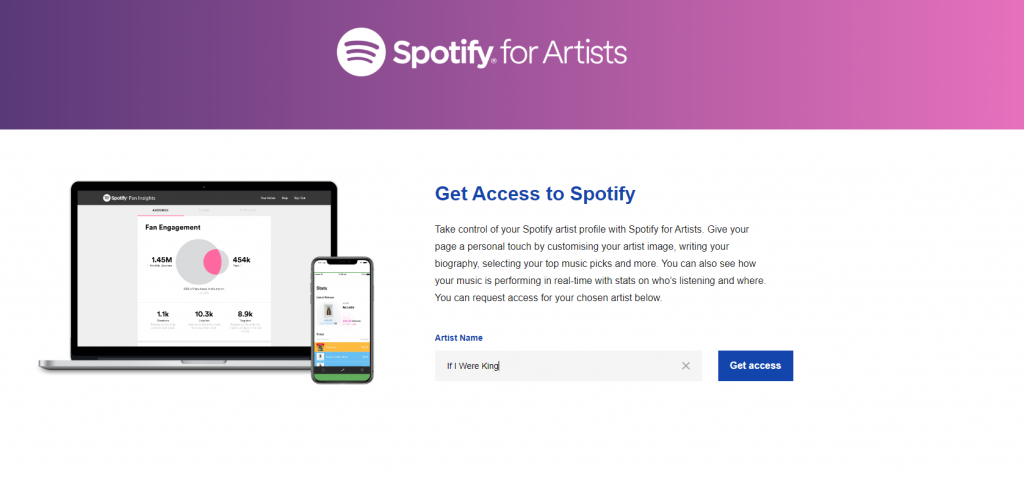
Make sure you click Continue on the pop up if you’re happy to proceed. You’ll then need to agree for Spotify’s access to view your Spotify account data.
You’ll then be shown an artist profile matching the artist name you’ve entered, like this:
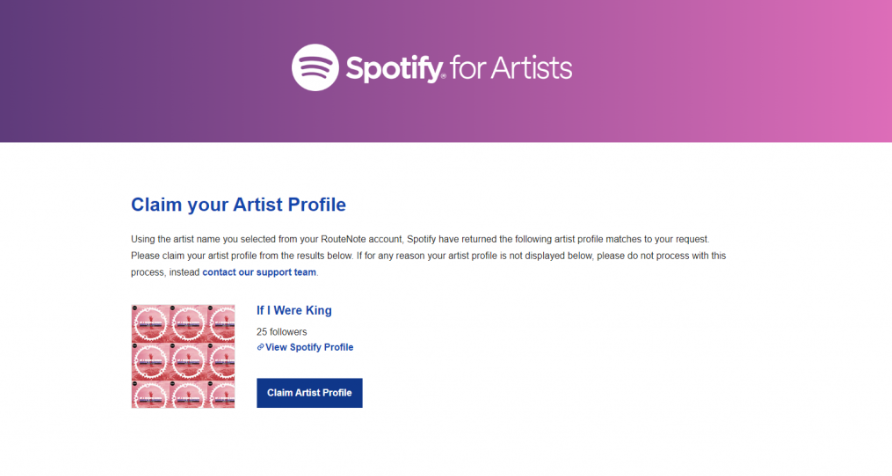
Click on Claim Artist Profile, then Continue on the pop up. You’ll then be directed to Spotify to finish the process. Happy days!
Keep an eye out for an email from Spotify, and hopefully within 3 days you’ll have access to your Spotify artist profile.
Once you’ve got access to your artist profile, you can then use the Spotify for Artists feature in your RouteNote account to reach Spotify for Artists whenever you need. To do this:
- Head to RouteNote
- Log-in
- Hover over Artist Services
- Select Spotify for Artists
Feel free to get in touch with us if you have any questions or concerns, or contact Spotify for Artists’ support team.
See also:
What can I do if a release is on the wrong artist profile?
Can I merge my Spotify artist profiles?
How do I get artists to appear on Spotify’s ‘Show Credits’ feature?