
Moderation processes can be confusing, but here at RouteNote our aim is to make it as easy as possible!
Because of how stores display releases, every upload – even single releases – has ‘Album Details’ and ‘Track Details’ sections. If you’re uploading a single track release, everything in these two sections need to be exactly the same.
To edit your album title, open up your release via your discography and click on Album Details. You’ll see a page that looks like this (we’ve added in the numbers in the screenshot so you can follow along)…
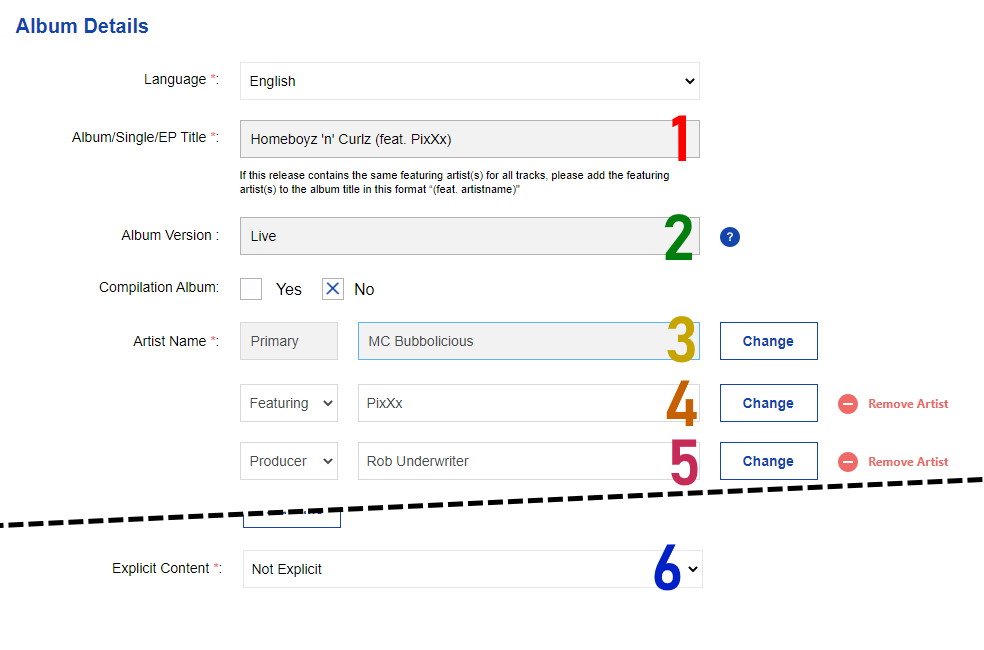
We’ve got the title (1), the title version (2), the artists (3, 4, 5) and the explicit content status (6).
If you go back to the release page and click on ‘Edit track details’, you’ll see this…
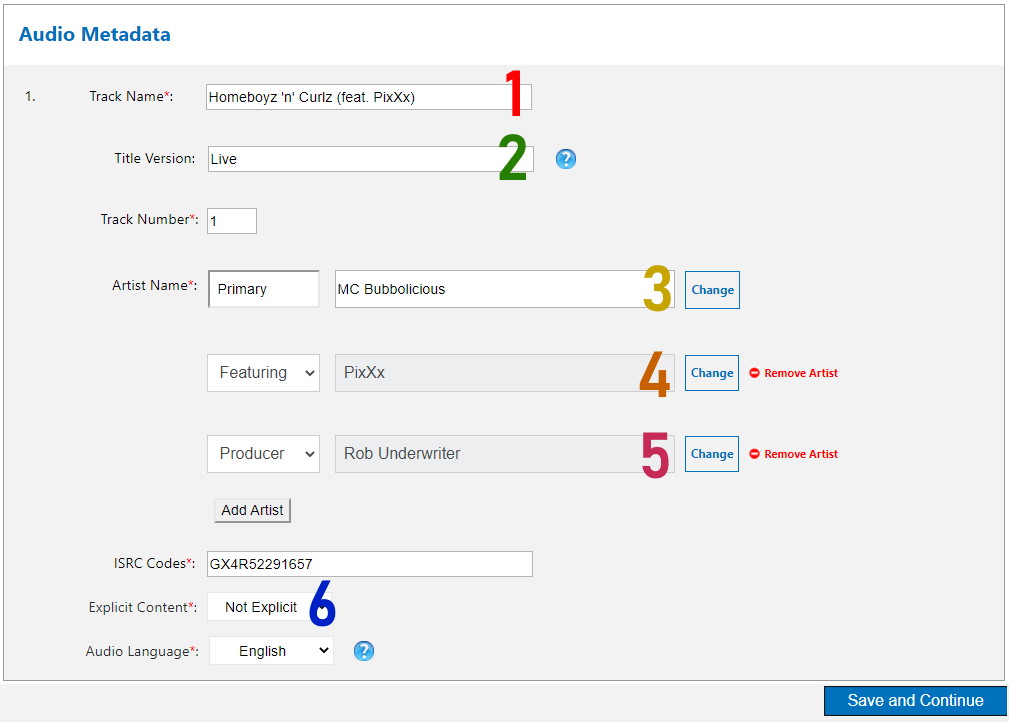
You can see it has the same sections as the album details page.
The track name and the title version (1 and 2) need to match in both sections exactly, including spelling, punctuation, and capitalisation. The artists (3, 4, and 5) need to be exactly the same, including the roles they have. Explicit content status (6) needs to be set the same in both places. If any of these sections are even slightly different then stores will automatically reject the release, so we’ll need to refer it back to you to get you to change it.
Check out the full RouteNote Style Guide here!
Feel free to get in touch with us if you have any questions or concerns!
See also:
How do I format multiple track releases?
How do I format various artist releases?